The Signal Chain Is Guilty Until Proven Innocent: Auditing KVM and Dock Hardware on a Calibrated Desk
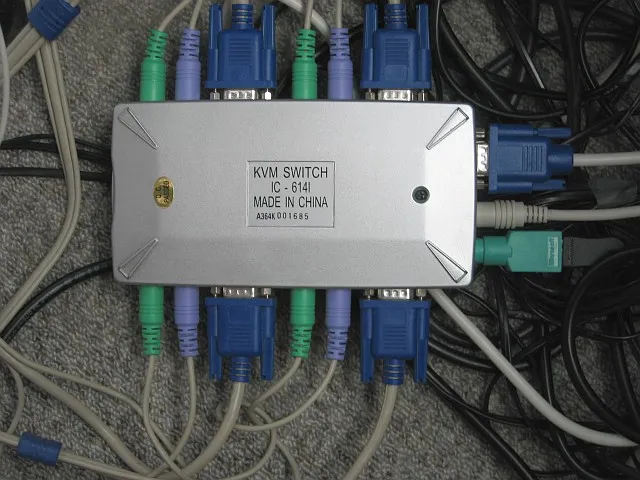
Photo: Priwo, Public domain, via Wikimedia Commons
Calibration fixes the display. It does not fix the path to the display. A workstation GPU can output a pristine 10-bit, full-chroma signal, and a $150 KVM can still hand the panel an 8-bit approximation with HDR switched off. For US studios that invest in color-managed review, that is not a minor inconvenience. It is a silent change to the evidence everyone uses to make decisions.
Start with a direct-connection baseline
Before blaming the switch, document what the GPU can do when it talks to the display alone. Use the same cable you intend to keep in the chain, connect directly, and record the negotiated mode in the operating system and the display's on-screen menu: resolution, refresh rate, color depth, chroma sampling, HDR status, VRR, and HDCP. On Windows, the advanced display settings and GPU control panel are a starting point; on macOS, the display profile and system report fill in some gaps. A colorimeter or a test pattern generator can confirm whether the panel is actually receiving the mode the OS claims.
Test one link at a time
Add the KVM, dock, or capture device back as the only new element. Repeat the same readings. If the mode changes, you have found a suspect. Then move the device to a different port or host input and test again. Many failures are port-specific: a USB-C dock may reserve bandwidth for USB 3.x data, a KVM may reserve its highest-bandwidth mode for one computer input, and a capture loop may strip HDR metadata even when it passes 4K at 60 Hz. Testing the whole chain at once produces a yes-or-no result; testing one link at a time produces a repair plan.
The failure points that recur
EDID emulation is the most common. A KVM that does not pass the display's real EDID may advertise a safe generic mode, and the GPU will comply. Bandwidth sharing is second. Docks and switches often quote a maximum resolution and refresh rate without stating the chroma sampling, color depth, or number of displays that fit inside that budget. Display Stream Compression can help, but only if every link supports it and passes it through. HDCP handling matters for review and playback; a switch that drops HDCP can turn a reference clip into a black screen. Cable quality and firmware are less glamorous but equally real: a marginal cable that works direct may fail after an additional connector, and a dock firmware update can change negotiated modes without warning.
Choose hardware by negotiated mode, not badge
Specifications should be read as commitments. A switch or dock suitable for a calibrated creator desk should state support for the display's native resolution at the required refresh rate with 10-bit color and 4:4:4 chroma, plus HDR passthrough if HDR is part of the workflow. It should document EDID handling, DSC passthrough, HDCP version, and per-port bandwidth. Generic '4K60' claims are not enough; 4K60 at 8-bit 4:2:0 and 4K60 at 10-bit 4:4:4 are different products in practice. For color-critical seats, a direct GPU connection for the reference display and a separate KVM for keyboard, mouse, and secondary monitors is often the safer architecture. If a single switch must carry everything, buy one with explicit per-port mode tables and a return window long enough to test.
An acceptance protocol for the studio
Write the audit into deployment. Label every cable, record the direct-connect baseline, and require the same readings through the switch before the desk is accepted. Keep a bypass path—a second cable or a spare port—so a failed handshake does not stop a review. Re-test after firmware updates and after adding a display. The goal is not to reject convenience. It is to make convenience prove that it has not changed the signal.